Tips to Stop Computer Freezes and Game Lags
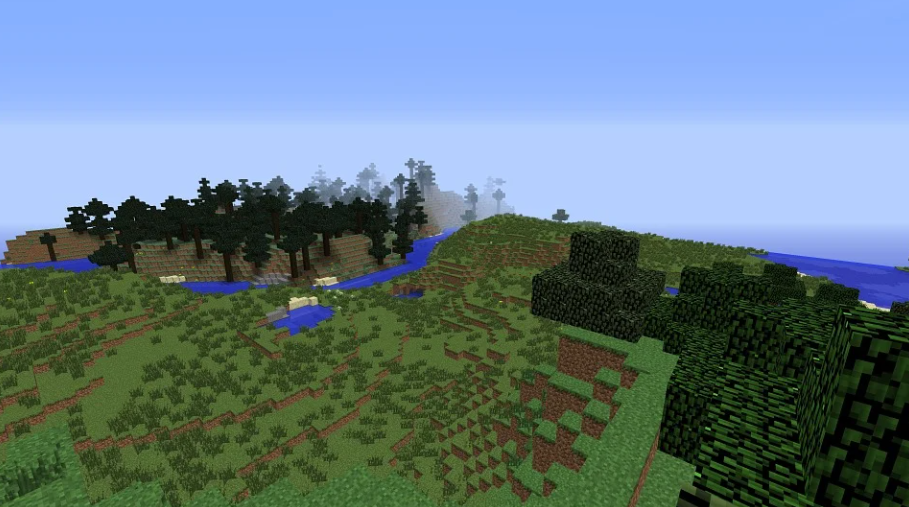
A game enthusiast who loves playing Minecraft or Blockheads on Windows may have experienced game lag or computer freezes. Many of them may have spent hours adjusting the game’s graphics settings to improve frame rate and performance. In most cases, these efforts result in minimal game improvement.
Even if your system meets the recommended hardware specifications, the game may still cause your computer to crash during intense action. Thus, optimizing your system and upgrading your hardware may not be the best solution for game lag or computer crashes. In this case, you can take several tips to allow you to save more resources for your gaming experience. This way, you can optimize your computer for smoother online and offline computer games.
Get More Bang Out of Your Bandwidth
 Windows has hundreds of services running. Their programs don’t care about your online gaming. Thus, they use as much bandwidth and system resources as your online game. Besides, many programs start automatically when you connect to the Internet or when Windows loads. It happens because Windows utilities can perform a tasks, such as checking for updates and downloading. They also allow you to share applications with your games.
To free up bandwidth and other resources, you should reduce the number of services running while you play games. This tip is an excellent way to keep your computer from crashing and your game from freezing. To make it works, you have to click on “Start” and “Run.” After that, type services.msc. In the Services window, select “Advanced” to see a more detailed description. You should also note the status of each service. Choose “Stop Service” or right-click on the service and select “All Tasks” and “OK.”
Disable Anti-Virus/Anti-Spyware Programs While Gaming
You may find this suggestion scary. However, these anti-virus programs can be very demanding on your computer. These programs can lock up your computer and slow down your game by launching several small processes and applications while you play. Although it is not always safe, you may be surprised by the results if you turn off these programs while you play.
Ensure the Hardware and Software Are Synchronized
This tip is an important step that many gamers often overlook. DirectX is essential for most new Windows games. To deliver high-quality multimedia graphics and sound, you need fast APIs (application programming interfaces) that allow blazing rendering. APIs act as the bridge between hardware and software. APIs are the language that hardware and software can use to “communicate” with each other. Game delays and computer crashes can be caused by misconfiguration. It is where DirectX diagnostic tools can help you make sure your audio/video hardware is configured correctly with Windows DirectX technology.
To make it works, you have to click on “Start” and “Run.” After that, load the “Direct X Diagnostic Tools” menu by typing dxdiag. Click on the “Display” and “Sound” tabs. Then, check that DX functions are enabled.
Run tests when prompted. Reinstall Direct X if there are problems, and then update your drivers. You can also open the Task Manager by pressing Ctrl+Alt-Delete. It allows you to view the Processes tab and see which services are consuming the most system resources. For more information, you can also see what causes high CPU usage.
Clean and Organize Your Hard Drive
This tip is a simple but essential way to avoid game lag. If your game finds files faster, you’ll have to worry less about computer crashes and game lag. Defragmenting helps reduce the time it takes your hard drive to find files. Defragmenting the registry reduces errors and increases RAM and CPU efficiency. These are essential steps to keep your computer from crashing. Also, try to speed up your computer for better performance.
It’s a good idea to upgrade your computer hardware to take advantage of new graphics and sound cards technology. It makes PC games more expensive than they need to be. With these tips, your gaming experience will be smoother and less frustrating.